

Fine-Tuning Square Appointments for Voka AI
Voka reads your Square catalog live — your services, your team, your real availability — and writes bookings straight back. So how well it performs on the phone is mostly decided by how your Square account is set up.
Seven settings, about twenty minutes, with your Square dashboard open in another tab.
Check which Square Appointments plan you are on
Square decides what an outside app can do on your calendar based on your subscription. On Appointments Plus and Premium, Voka can book, move and cancel any appointment, including ones made online, in person or at the front desk. On Square Free, Square does not let outside apps create or change appointments, so Voka can check availability and answer questions but cannot put a booking in Square.
Do this
- In SquareSettings›Account & Billing›Pricing & Subscriptions
Check whether you are on Square Free, Plus or Premium. Plus or Premium is what lets Voka book by phone.
Worth knowing
Voka still answers every call on Square Free, checks your real availability and captures the booking request for your team. Your Voka portal flags the plan limit after you connect.
If it’s wrong, you’ll hear: Voka offers a caller an open time, then tells them the team will confirm instead of booking it, and nothing appears in Square. On Square Free, Square refuses bookings from outside apps.
Name services the way your callers say them
Voka matches what a caller asks for against your live Square catalog by name. It never invents a service and never guesses an ID. It tries an exact match, then a whole-word match, then an overlap of words — and if two services tie, it deliberately resolves to nothing rather than pick wrong. So a catalog full of internal codes, or several services whose names start with the same word, is what turns "I’ll have a cut" into "we don’t offer that".
Do this
- In SquareItems & services›Service library
Read your service names out loud. If you would not say it to a client on the phone, rename it. Move durations and internal codes into the description.
- In SquareItems & services›Service library
Where two services start with the same word — "Haircut – Level 2" and "Haircut – Level 3" — put the distinguishing word first instead: "Level 2 Haircut".
- In SquareItems & services›Service library
Set a realistic duration on every service and every variation. Square uses it to work out when a second service can start, so a duration that is wrong either overbooks the chair or hides slots the caller could have had.
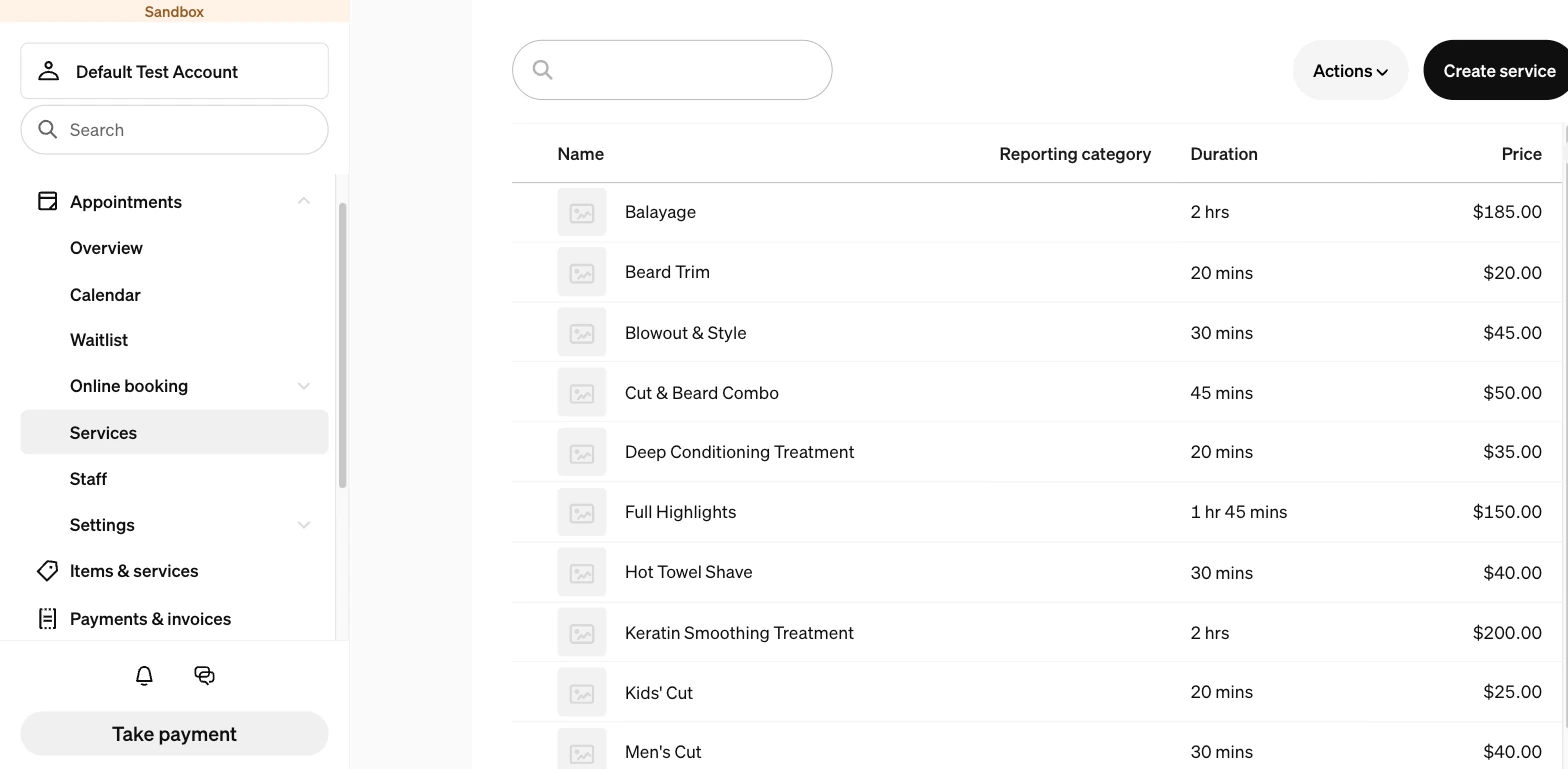
In SquareYour service list is what Voka reads on every call. Names, durations and prices come straight from here. If it’s wrong, you’ll hear: A caller says "just a cut" and hears that you do not offer it — because Men’s Cut, Kids’ Cut and Women’s Cut all match equally well and Voka would rather say nothing than book the wrong one.
Turn on "Bookable by Customers Online" for everything you want taken by phone
This one toggle controls API booking as well as online booking. A service with it switched off is dropped from the spoken menu, and if a caller names it directly Voka declines before it even searches. It matters most on multi-service calls: if any one service in the request is switched off, Square refuses the whole request and does not name which service caused it.
Do this
- In SquareItems & services›Service library›each service
Switch "Bookable by Customers Online" on for every service you want taken by phone — and check each variation of a service separately, not just the parent.
- In SquareItems & services›Service library
If you deliberately keep something off the online menu, expect Voka to decline it by phone too. That is usually the right outcome — just know it is the reason.
If it’s wrong, you’ll hear: A caller asks for two services together and is told that one of them is off the bookable menu and Voka cannot tell which — because Square refuses the whole request without naming the service.
Decide between cancellation fees and phone booking
Square’s Bookings API will not create a booking for any service that carries a cancellation or no-show fee. This is a platform rule, not a Voka limitation, and it is the single most common reason an owner says "it would not book my service". Voka detects it and declines cleanly rather than failing partway through a call.
Do this
- In SquareItems & services›Service library›each service
Check which services carry a cancellation or no-show fee. Remove the fee to open phone booking for that service.
- In SquareItems & services›Service library
Or keep the fee and accept that the service is online-only. Voka will point callers at your Square booking site and offer your other services.
Worth knowing
If the fee was there to protect against no-shows, a deposit does the same job without blocking the phone. That is step six.
If it’s wrong, you’ll hear: Voka declines a service you definitely offer, on a day you definitely have open — because Square will not accept the booking at all while the fee is attached.
Assign every service to the staff who actually perform it
Square filters which staff can take a service by the team members assigned to it — but only when that list is not empty. Leave it empty and every bookable team member is treated as able to perform the service, including people who cannot. This is what drives three things at once: honouring "I want Ana", answering "whoever is free soonest", and putting a different provider on each service inside one appointment.
Do this
- In SquareItems & services›Service library›each service›Team members
Select the team members who genuinely perform each service. An empty list means "everyone bookable", not "everyone qualified".
- In SquareStaff›Team›Team members
Make sure each person is bookable in their staff booking profile. A team member who is not bookable is invisible to Voka.
If it’s wrong, you’ll hear: A caller asks for Ana and is booked with whoever Square offered first — or a couples booking is refused with "we only have 0 staff who can do that", because the assignments point at people who are not bookable.
Choose whether bookings are automatic or reviewed
If your store reviews booking requests rather than accepting them automatically, Square returns new bookings as pending. Voka reports that honestly — the caller is told the appointment has been requested and is awaiting your confirmation — and it will not offer alternative times or try to book again.
Do this
- In SquareAppointments›Settings›Booking flow
Set bookings to be accepted automatically if you want callers to hang up with a confirmed appointment.
- In SquareAppointments›Settings›Booking flow
Keep review on if you prefer to approve each one, and expect Voka to say "requested" rather than "confirmed" on the call.
If it’s wrong, you’ll hear: Callers hang up believing they are booked, then find out later it was only a request — or the opposite, they are told it is pending when you would rather it had just been confirmed.
Turn on deposits if no-shows are the problem
Voka never asks a caller to read out a card number. Instead it books the appointment and then texts a secure Square link — a deposit, the full amount, or the caller’s choice — and the caller pays on Square’s own hosted checkout. This is the way to protect a slot without attaching a cancellation fee that would block phone booking entirely.
Do this
- In VokaIntegrations›Square Appointments›Payment collection
Pick how the assistant should collect payment: none, deposit only, full payment only, or let the caller choose. Then set the deposit amount as a percentage or a fixed sum.
- In VokaAI Assistants›your assistant›Messaging
Make sure SMS is enabled on every assistant taking these calls. The link is texted, so without SMS the assistant cannot send it.
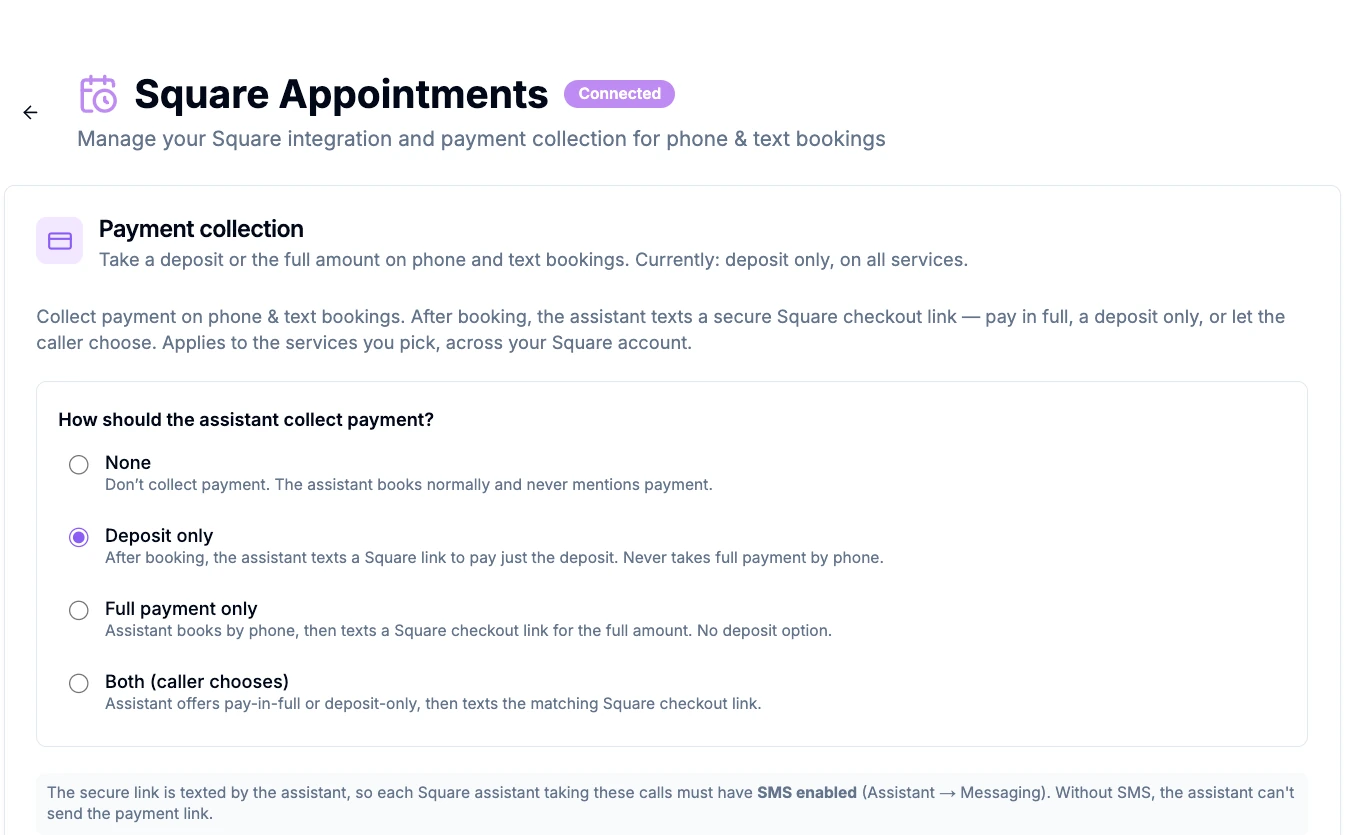
In VokaPayment collection in Voka. Note the reminder that the assistant needs SMS enabled to send the link. If it’s wrong, you’ll hear: The assistant books the appointment and mentions a payment link the caller never receives — the usual cause is SMS not being enabled on that assistant.
What stays on your Square booking site
Some things are handled on Square’s own booking page rather than on a call. None of this is something to fix — it is a map of where a caller gets sent.
If a caller asks for…
Voka…
Asks forA class or a course
VokaAnswers what you have loaded about it and points them to your Square booking site. Square’s Bookings API does not cover classes.
Asks forA standing weekly appointment
VokaBooks the next one on the call and sends them to your booking site for the series. Recurring appointments live outside the Bookings API.
Asks forTo be added to a waitlist
VokaNever claims to have done it. It offers your nearest real openings, and can take a callback request that emails your team.
Asks forTo pay over the phone
VokaBooks first, then texts a secure Square checkout link. No card number is ever spoken or stored.
Asks forTo change an appointment booked at the front desk
VokaHandles it on Appointments Plus or Premium. On Square Free it takes a message instead, because Square does not let outside apps change appointments on the free plan.
Now test it
Call your Voka number and ask for the service you just fixed, by the name a client would use. Then open your Square calendar and check that the appointment landed on the right person, at the right length, with the right price.
Something not behaving as described? hello@vokaai.com — we can pull the recording, the transcript and exactly what Square Appointments returned.
Not a Voka customer yet? See what the Square Appointments integration does.
Frequently asked questions
Why does Voka AI say we do not offer a service we definitely offer?
Almost always one of three settings. The service may not be in Square’s Service Library as an appointments service, in which case it is invisible to the integration entirely. It may have "Bookable by Customers Online" switched off, which stops API booking as well as online booking. Or its name may be too far from what the caller said — Voka matches against your live Square catalog by name and deliberately gives up rather than guess between similar services.
Do I need a paid Square Appointments plan?
To book, yes. Square lets outside apps create, move or cancel appointments only for sellers subscribed to Appointments Plus or Premium (per Square’s Bookings API documentation). On Square Free, Voka still reads your services, staff and availability and answers questions, but it takes booking requests for your team to confirm instead of putting them in Square.
Why will Voka AI not book a service that has a cancellation fee?
Square’s Bookings API will not create a booking for a service that carries a cancellation or no-show fee. Voka detects this and declines cleanly rather than failing partway through a call. You can remove the fee to open phone booking, or keep the fee and treat that service as online-only — Voka will point callers at your Square booking site and offer your other services.
A caller asked for two services and was told one is unavailable. Why?
If any service in a multi-service request is switched off for online booking, Square refuses the whole request and does not say which one caused it. Voka tells the caller honestly that one of the services is off the bookable menu and that it cannot tell which, rather than guessing. Keeping every phone-bookable service online-booking enabled avoids it.
Why does Voka AI keep saying it needs to check availability?
Usually a service with no duration set. Duration is read from Square and drives the booking pre-flight check, so a service with no duration can never pass it — and checking availability again will not fix it. Set a realistic duration on every service and every variation.
Can Voka AI book classes or recurring appointments in Square?
No. Square’s Bookings API does not cover classes or recurring appointments, so neither can be booked on a call. Keep them on your Square booking site — Voka answers questions about them and points callers there, and handles every standard appointment by phone.
Does Voka AI run a waitlist?
No, and it will never tell a caller it has added them to one. When the time someone wants is full it offers your nearest real openings, and it can take a callback request that emails your team so you can offer the next cancellation to the client who wanted it most.
Related
Square platform behaviour described here was verified against Square’s own Bookings API documentation and support articles on September 3, 2026. Menu paths follow the Square Dashboard as of that date and may move. Square Appointments is a product of Block, Inc. Voka AI is an independent product that connects to Square through its public API, and is not affiliated with, endorsed by, or sponsored by Square. Last updated September 3, 2026.